
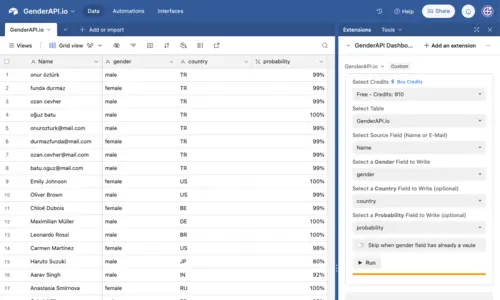
Use the extension for mapped Airtable fields
The GenderAPI extension reads a name or email from your chosen field and writes a predicted gender signal into a separate destination. You can also map country, probability and a found name, then skip records whose gender destination already contains a value.
The extension source reviewed on 27 September 2026 uses the legacy V1 name and email endpoints and their top-level response fields. This guide describes that native workflow. An installed extension can change independently; check its available controls before applying the mappings below.
Connect the base and prepare your columns
- Open the intended Airtable base, add GenderAPI.io from Extensions and run it. Complete the connection flow shown by the extension.
- Choose the credits key you want the operation to use. Review its remaining balance and keep this key associated with the intended GenderAPI account.
- Choose the table and a source field containing names or emails. Keep the original input in that field and create separate result fields.
- Select a required gender destination and any optional supporting destinations. Use a percent field for formatted percentages or a numeric field for the original probability scale.
- Decide whether to preserve populated gender destinations. Enabling skip also preserves earlier unresolved text values, so clear only the particular results you deliberately want to reprocess.
Map the extension's inputs and outputs
The source field can contain a mixture of names and emails. In the inspected implementation, a value containing @ takes the email path; this routing rule does not validate that the mailbox exists.
| Extension setting | Required | Value and behavior |
|---|---|---|
| Credits key | Yes | The selected GenderAPI account key supplies the credits for processed queries. |
| Table and source field | Yes | The source cell provides a name or email. Blank source cells are skipped. |
| Gender destination | Yes | Receives the native gender field. Keep an unresolved value separate from male and female. |
| Country destination | No | Receives the returned country value. It is an output column, not a country filter for the request. |
| Probability destination | No | Receives the legacy probability value. A percent field receives the value divided by 100; a numeric field keeps the original scale. |
| Found Name destination | No | Receives the name returned by the native API where available. Keep this inferred candidate separate from the source value. |
| Skip populated gender fields | No | Preserves records with an existing destination value, including unresolved text. Check its selected state before each run. |
Review a small run before processing the table
Begin with a small test table containing a name, an email, an empty cell and an ambiguous input. Confirm the chosen destination fields and how Airtable displays the probability scale before processing your main table.
In the reviewed extension code, unresolved defaults can appear as the text null and probability zero. Some unsuccessful native responses can also leave those defaults, while a connection failure may leave a record unchanged. Review the run state and affected rows; the text null alone is not proof that a lookup completed successfully.
Inspect existing values after the run. Preserve unresolved results for review rather than assigning a gender yourself. Name-based predictions do not verify a person's gender identity, and country output is not proof of residence.
| What you see | What to do |
|---|---|
| An expected result in the intended columns | Keep the original input and any supporting fields so the mapping remains reviewable. |
| null text or zero probability | Leave unresolved and review the operation status before deciding whether another lookup is appropriate. |
| A previously populated destination stayed unchanged | Check the skip setting; this can be intentional preservation. |
| A key/credit message or unchanged result after failure | Resolve the account or connection issue and identify the affected records before restarting. |
Keep the selected credits and reruns under control
The native extension queries values individually using the selected GenderAPI key. Running the same unskipped records again can submit new queries and use credits again. Airtable's own plan and extension availability are separate from that account balance.
The native output does not expose the V2 data/meta response, explicit AI mode, per-item usage object or V2 batch contract. Use the legacy reference for this workflow and the separate API option below when those controls are required.
The extension sends mapped values for processing and writes results back to your base. Review the published data-handling policy and the extension permissions for your intended records; keep unrelated fields out of the source mapping.
Choose the API when you need a programmatic response
For a custom integration, GenderAPI V2 accepts names, emails and usernames and returns explicit result, confidence, source and usage fields. Configure that connection separately: reading the V2 guide does not change an installed app or its output columns.
The Python and Node.js examples cover single requests, batches, unknown results and operational failures. Start with the authentication guide and choose your AI mode before sending a billable request.
Frequently asked questions
Does the Airtable extension use GenderAPI V2?
The extension source reviewed on 27 September 2026 uses the legacy V1 name and email endpoints. A separate custom V2 connection has different request and response fields; it does not upgrade the installed extension.
Can one source field contain both names and email addresses?
Yes. The inspected extension routes nonempty values containing @ to its email lookup and other values to its name lookup. This is input routing, not mailbox verification.
Why does the probability look different in a percent field?
The extension divides its legacy probability value by 100 for an Airtable percent field so Airtable can format it as a percentage. A numeric destination keeps the original scale; this is not the V2 confidence field.
Will the skip option preserve unresolved results?
Yes, when the destination already contains a value. That includes null text from an earlier run. Review those records and clear only the values you deliberately intend to process again.
Reference sources
This guide and its reference sources were reviewed on . Use the platform references for setup details and the linked API documentation for a separate V2 integration.