
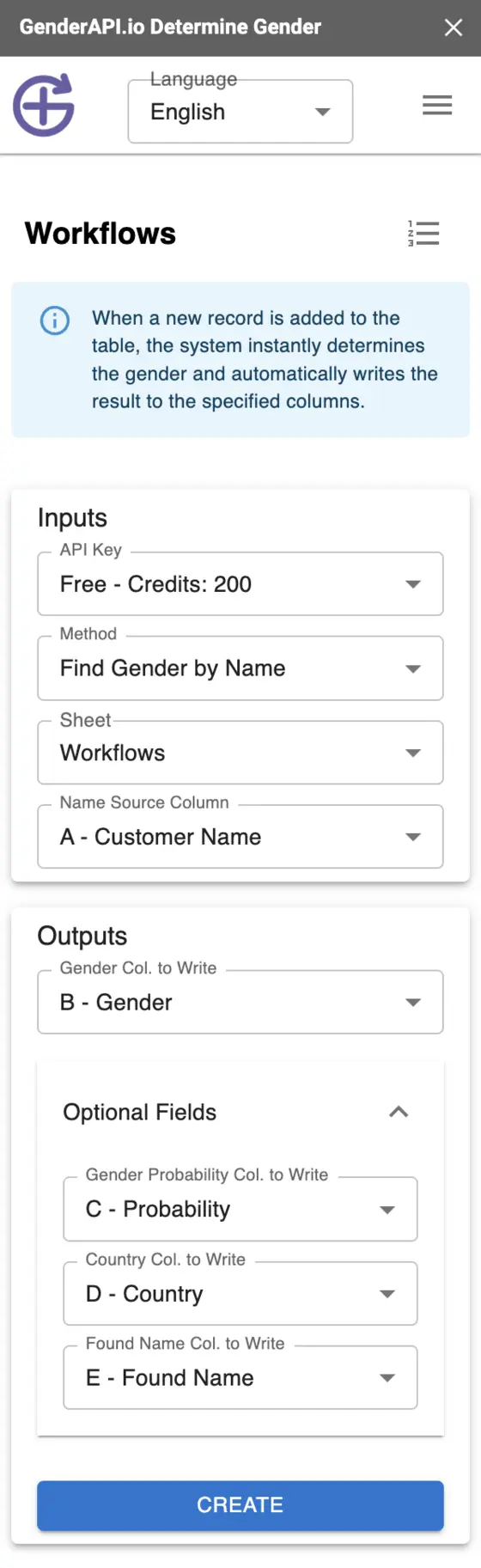
Map incoming records to result columns
The GenderAPI add-on offers a workflow screen for mapping new spreadsheet records to gender and optional result columns. Set it up for the intended worksheet, then verify an actual incoming record before relying on the automation.
A native workflow is separate from a direct V2 HTTP action. Its trigger behavior, timing and output fields depend on the installed add-on and Google account; an instant update for every source of new rows is not guaranteed.
Create and test the workflow
- Install and open the GenderAPI add-on, then open Workflows from the sidebar menu.
- Choose the worksheet and your API key. Select name, email or username analysis to match the source column.
- Map a source column and a separate gender destination. Add probability, country and found-name destinations only when needed.
- Review all mappings before creating the workflow. The interface prevents column conflicts and can report an existing workflow or a reached workflow limit.
- Add a representative record using the same mechanism your production data uses. Confirm the values appear in the correct row and no existing fields are overwritten.
- Test an unresolved value and an operational failure, then decide how you will detect and review missing or failed rows.
Configure the native workflow fields
| Setting | Type | Use |
|---|---|---|
| API key | Credential | Choose the intended account and confirm available credits. |
| Worksheet | Sheet selection | The sheet whose records this workflow should process. |
| Method | Choice | Name, email or username; the chosen method determines how the input is interpreted. |
| Source column | Column reference | The value to analyze in each record. |
| Gender column | Column reference | A destination distinct from the input and other outputs. |
| Probability, country, found name | Optional destinations | Separate columns for the additional native outputs. |
Test how rows actually arrive
Typing a value, submitting a form and importing records through a CRM are different events. Google's trigger documentation explains that script executions and API requests generally do not fire installable triggers. The add-on's exact trigger implementation is not established by its public listing, so test the source you plan to use.
Do not assume that a workflow has backfilled existing rows. Use the bulk sidebar for a deliberate existing-row job and keep a record of which rows have already been processed.
If an expected update is missing, check the workflow, permissions, key balance, output mappings and platform errors before submitting the same records again.
Read the native result columns
Keep your original input beside the result. A name-based association does not establish a person's self-declared gender, and a returned country is not verified residence or nationality.
- Inspect an ordinary result, an ambiguous input and a failed operation before processing a full dataset.
- A blank cell, the text null and a formula error are different spreadsheet values. Normalize unknown results deliberately without hiding errors.
- Use a neutral fallback for unknown or uncertain records. Keep supplied profile information separate from inferred columns.
| Output | Typical type | How to use it |
|---|---|---|
| Gender | Text or unresolved value | Retain male or female only for a successful result. Preserve an unresolved value as unknown; review error text separately. |
| Probability | Number, when available | A legacy confidence signal. It is not the V2 confidence field or a measured accuracy rate for your dataset. |
| Country | Text, when available | Context returned by the lookup. Keep it separate from a customer's verified country. |
| Found or normalized name | Text, when available | The name used or extracted during processing. Review it for ambiguous emails and usernames. |
Plan for credits, limits and repeated runs
A registered free GenderAPI account includes 200 credits per day. Credits are an account balance, not a promise of 200 successful results in every workflow. Check the selected key's balance and the tool's current processing options before starting.
Native add-ons and file jobs have their own processing paths. The REST V2 batch limit, AI options and per-request billing fields do not automatically apply to them. A repeated run or recalculation can submit fresh work; do not assume it is free.
Start with a small sample, retain completed results, and review the failed rows before rerunning. If you only need to repair a later export or destination update, reuse the results you already have.
When to use the direct V2 API
Use a separate HTTP integration when your application needs explicit AI options, per-item status, source, confidence kind and usage information from V2. Follow the V2 request and response contract; adding V2 field names to a native formula or existing add-on does not change that client's behavior.
Frequently asked questions
Will every CRM import trigger the native workflow?
Do not assume it will. Test a record from the actual CRM or automation. Google distinguishes user edits, form submissions and API-driven updates, and the add-on's installed trigger behavior must be checked.
Can I process rows that were already in the sheet?
Use the bulk sidebar with a deliberate row range. Creating a new-row workflow does not establish that existing records will be backfilled.
What is the maximum number of workflows?
The interface can report a workflow limit, but this guide does not state an unverified numeric allowance. Check the current add-on and remove obsolete workflows when appropriate.
How do I get V2 source and usage fields?
Create a separate V2 HTTP integration, such as the documented Make or Zapier recipe. Native result columns should not be assumed to contain the V2 response envelope.
Reference sources
This guide and its reference sources were reviewed on . Use the platform references for setup details and the linked API documentation for a separate V2 integration.