
Official Add-On
Google Workspace Marketplace से इंस्टॉल करें
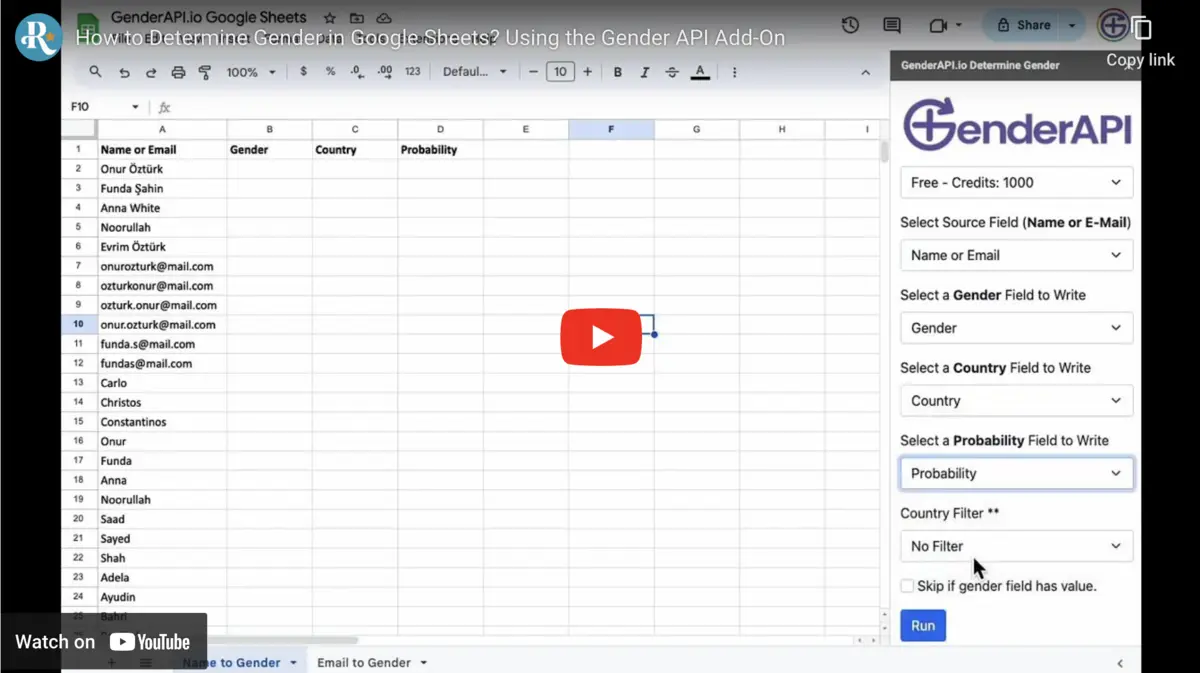
Spreadsheet के लिए GenderAPI install और authorize करें, फिर Extensions menu से panel खोलें। नए accounts को test के लिए प्रतिदिन 200 मुफ्त API credits मिलते हैं।
Google Sheets Add-On इंस्टॉल करेंConfiguration
Bulk analysis छह चरणों में तैयार करें
- 01
Add-On इंस्टॉल करके खोलें
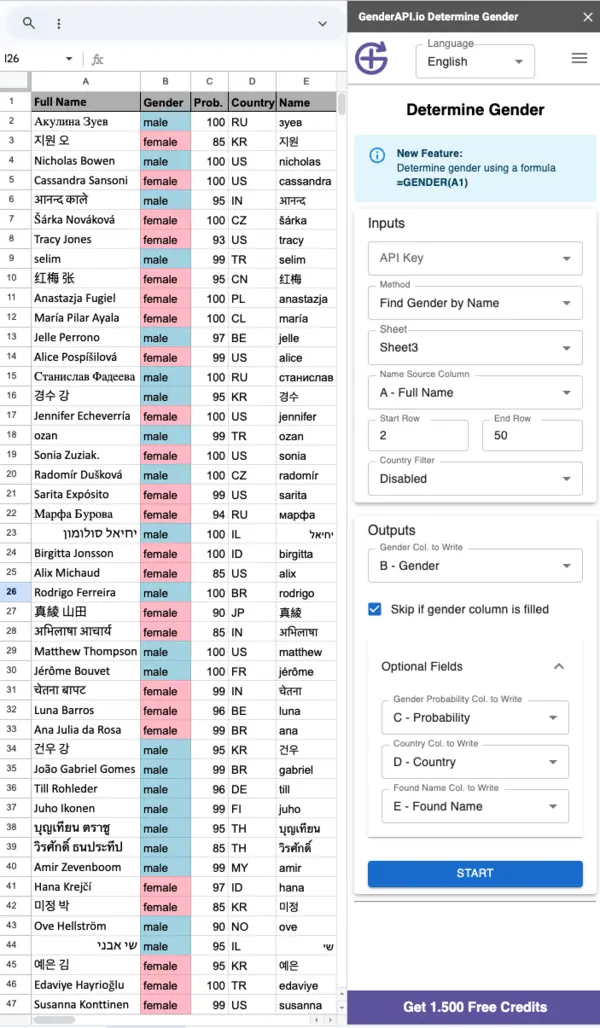
Google Workspace Marketplace से GenderAPI इंस्टॉल करें। Spreadsheet में Extensions → GenderAPI → Determine Gender खोलें।
- 02
API key और method चुनें
Credits वाली API key चुनें और फिर name, email address या username analysis method तय करें।
- 03
Column और row range map करें
Data वाला column तथा process की जाने वाली पहली और अंतिम row चुनें।
- 04
उपलब्ध होने पर country context जोड़ें
यदि regional name patterns dataset के लिए महत्वपूर्ण हों तो भरोसेमंद country context वैकल्पिक रूप से दें।
- 05
Result columns तय करें
Gender के लिए column और जरूरत होने पर probability, country तथा identified name के columns चुनें।
- 06
Existing results सुरक्षित रखकर run करें
पहले से भरे cells को skip करने का विकल्प चालू करें, bulk process शुरू करें और results review करें।
Side-panel configuration
Input और output columns स्पष्ट रूप से map करें
पहले data source और फिर केवल जरूरी result fields चुनें। पूरी dataset से पहले selected rows पर configuration जांचें।
- Input
- Name, email या username column
- Scope
- पहली और अंतिम row
- Context
- Optional country filter
- Output
- Gender; optional probability, country और identified name
सही workflow चुनें
Bulk processing, formula या real-time automation
अक्सर पूछे जाने वाले सवाल
GenderAPI Google Sheets Add-On के बारे में
GenderAPI Google Sheets Add-On कैसे इंस्टॉल करें?
Google Workspace Marketplace की official listing खोलें, Add-On इंस्टॉल करें और उपयोग की जाने वाली spreadsheet के लिए authorize करें।
कौन-से input types समर्थित हैं?
Name, email address और username analysis समर्थित हैं। Column map करने से पहले सही method चुनें।
क्या बड़ी datasets analyze कर सकते हैं?
Bulk process के लिए first और last rows तय कर सकते हैं। समय rows, credits, platform quotas और service conditions पर निर्भर करता है।
क्या country result बेहतर कर सकता है?
एक ही नाम अलग देशों में अलग तरह इस्तेमाल होने पर regional context मदद कर सकता है। Country तभी दें जब data भरोसेमंद हो।
Results कहां लिखे जाते हैं?
Gender और optional probability, country तथा identified name आपके चुने spreadsheet columns में लिखे जाते हैं।
क्या existing gender values skip कर सकते हैं?
हाँ। पहले से भरे cells overwrite न हों, इसके लिए संबंधित विकल्प enable करें।
क्या नए accounts को मुफ्त credits मिलते हैं?
हाँ। नए accounts को Add-On और दूसरे GenderAPI workflows test करने के लिए प्रतिदिन 200 मुफ्त API credits मिलते हैं।