
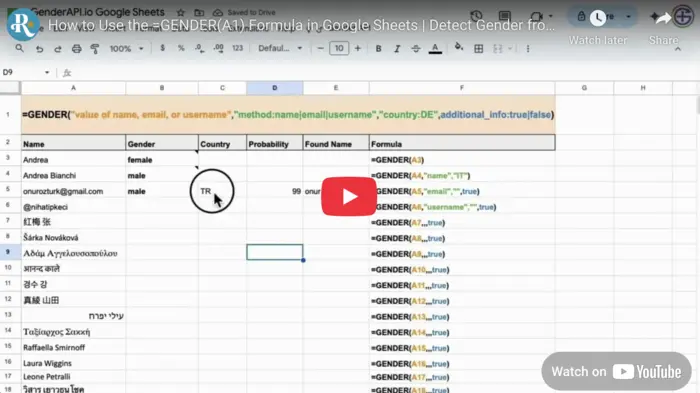
एक सेल से परिणाम पाएँ
Google Sheets के लिए GenderAPI ऐड-ऑन इंस्टॉल करके और उसकी Formula सेटिंग में कुंजी सेव करने के बाद, सेल A2 का नाम जाँचने के लिए =GENDER(A2) डालें। वैकल्पिक आर्ग्युमेंट से आप इनपुट के रूप में ईमेल पता या यूज़रनेम चुन सकते हैं, और भौगोलिक संदर्भ व अतिरिक्त परिणाम कॉलम तय कर सकते हैं।
GENDER ऐड-ऑन का अपना फ़ॉर्मूला है। यह V2 का JSON अनुरोध ऑब्जेक्ट स्वीकार नहीं करता और V2 रिस्पॉन्स की संरचना नहीं लौटाता।
फ़ॉर्मूला लिखने से पहले कुंजी सेव करें
- Extensions → GenderAPI → Determine Gender खोलें, फिर साइडबार मेन्यू में Formula पेज पर जाएँ।
- सेव की गई कोई API कुंजी चुनें, या अपनी कुंजी डालकर सेव करें। क्रेडेंशियल को साझा सेल के बजाय साइडबार में रखें।
- A2 में एक प्रतिनिधि मान डालें और फ़ॉर्मूला किसी दूसरे सेल में रखें। अतिरिक्त जानकारी माँग रहे हों, तो दाईं ओर जगह खाली रखें।
- फ़ॉर्मूला दूसरी पंक्तियों में कॉपी करने से पहले परिणाम और साइडबार के मौजूदा निर्देश जाँचें।
आर्ग्युमेंट इसी क्रम में आते हैं
| आर्ग्युमेंट | प्रकार | डिफ़ॉल्ट | विवरण |
|---|---|---|---|
input | टेक्स्ट या सेल संदर्भ | ज़रूरी | एक नाम, ईमेल पता या यूज़रनेम, जैसे A2। |
method | टेक्स्ट | name | इनपुट के अनुसार name, email या username चुनें। |
country_filter | टेक्स्ट | देश का कोई फ़िल्टर नहीं | वैकल्पिक दो अक्षरों वाला देश कोड। additional_info से पहले इसे छोड़ना हो, तो खाली स्ट्रिंग इस्तेमाल करें। |
additional_info | बूलियन | FALSE | TRUE पास के कॉलम में अतिरिक्त फ़ील्ड लौटाता है। FALSE सिर्फ़ लिंग लौटाता है। |
हर पंक्ति एक अलग फ़ॉर्मूला है। A2 के मान से मेल खाने वाला मेथड चुनें। ये उदाहरण सिंटैक्स दिखाते हैं, किसी खास परिणाम की गारंटी नहीं देते। शीट की क्षेत्रीय सेटिंग के अनुसार आर्ग्युमेंट अलग करने के लिए कॉमा की जगह सेमीकोलन इस्तेमाल हो सकता है।
=GENDER(A2)
=GENDER(A2, "email")
=GENDER(A2, "username")
=GENDER(A2, "name", "IT", TRUE)
=GENDER(A2, "email", "", TRUE)
विस्तृत परिणाम के लिए जगह छोड़ें
additional_info चालू होने पर Google Sheets साइडबार के मौजूदा निर्देश इस क्रम में चार मान बताते हैं: लिंग, देश, probability और सामान्यीकृत पहला नाम। यह क्रम Excel फ़ॉर्मूले से अलग है। कॉलम हेडर तय करते समय इंस्टॉल किए गए ऐड-ऑन के निर्देश देखें।
सभी टारगेट सेल खाली रखें, ताकि ऐरे फैल सके। रुका हुआ ऐरे, कुंजी का न होना या प्लेटफ़ॉर्म की त्रुटि को अलग से सुलझाना होगा: ये अज्ञात परिणाम वाले अनुमान नहीं हैं।
| स्थान | Sheets के मौजूदा निर्देश | कैसे संभालें |
|---|---|---|
| 1 | Gender | अनसुलझा परिणाम अज्ञात के रूप में सेव करें और त्रुटि संदेशों से अलग रखें। |
| 2 | Country | खोज से लौटाया गया संदर्भ, सत्यापित स्थान नहीं। |
| 3 | Probability | पुराने समय से चला आ रहा यह मान परिणाम के साथ सेव करें। इसका नाम बदलकर V2 का confidence न रखें। |
| 4 | Normalized name | कहीं और इस्तेमाल करने से पहले आपके इनपुट से निकाला गया पहला नाम जाँचें। |
दोबारा गणना और कैश नोट को समझें
फ़ॉर्मूला डायनैमिक है। इनपुट बदलने या शीट की दोबारा गणना होने पर फिर से प्रोसेसिंग हो सकती है। ऐड-ऑन फ़ॉर्मूला और कैश किए गए परिणाम वाला एक नोट जोड़ सकता है, लेकिन यह नोट इस बात की गारंटी नहीं है कि बाद की हर दोबारा गणना में नया अनुरोध नहीं जाएगा या क्रेडिट नहीं लगेंगे।
कस्टम फ़ंक्शन और URL Fetch पर Google की निष्पादन सीमाएँ GenderAPI के क्रेडिट से अलग हैं। Google के मौजूदा दस्तावेज़ों के अनुसार किसी कस्टम फ़ंक्शन का हर निष्पादन ज़्यादा से ज़्यादा 30 सेकंड चल सकता है। एक साथ बहुत सारे फ़ॉर्मूले या धीमे अनुरोध त्रुटि पैदा कर सकते हैं, भले ही आपके अकाउंट में क्रेडिट बचे हों।
अगर आपको स्थिर स्नैपशॉट चाहिए, तो भरे हुए परिणाम कॉपी करके किसी दूसरी रेंज में मान के रूप में पेस्ट करें। यह कॉपी फ़ॉर्मूले पर निर्भर नहीं रहती। मूल इनपुट और जाँच की तारीख भी सेव करें।
क्रेडिट, सीमाओं और दोबारा चलाने की योजना बनाएँ
रजिस्टर किए गए मुफ़्त GenderAPI अकाउंट में हर दिन 200 क्रेडिट मिलते हैं। यह अकाउंट का बैलेंस है, यह वादा नहीं कि हर वर्कफ़्लो से 200 पहचाने गए परिणाम मिलेंगे। शुरू करने से पहले चुनी गई कुंजी का बैलेंस और टूल के मौजूदा प्रोसेसिंग विकल्प जाँचें।
ऐड-ऑन और फ़ाइल प्रोसेसिंग अपनी-अपनी प्रक्रिया से चलते हैं। V2 REST API की बैच सीमाएँ, AI विकल्प और हर अनुरोध के बिलिंग फ़ील्ड इन टूल पर अपने-आप लागू नहीं होते। दोबारा चलाने या दोबारा गणना से नए अनुरोध जा सकते हैं और क्रेडिट लग सकते हैं, इसलिए इसे मुफ़्त न मानें।
छोटे सैंपल से शुरू करें, मिले परिणाम सेव करें और दोबारा चलाने से पहले विफल पंक्तियों की समीक्षा करें। अगर आपको सिर्फ़ किसी एक्सपोर्ट या टारगेट सिस्टम का अपडेट ठीक करना है, तो मौजूदा परिणाम दोबारा इस्तेमाल करें।
V2 API सीधे कब इस्तेमाल करें
अगर आपके ऐप्लिकेशन को साफ़ तौर पर तय AI विकल्प और हर आइटम के लिए V2 की status, source, confidence_kind और usage जानकारी चाहिए, तो एक अलग HTTP इंटीग्रेशन कॉन्फ़िगर करें। V2 के अनुरोध और रिस्पॉन्स के नियमों का पालन करें: ऐड-ऑन के अपने फ़ॉर्मूले या मौजूदा ऐड-ऑन में V2 फ़ील्ड के नाम जोड़ने से उनका व्यवहार नहीं बदलता।
अक्सर पूछे जाने वाले सवाल
क्या इस फ़ॉर्मूले का नाम GENDER_API है?
नहीं। Google Sheets ऐड-ऑन के दस्तावेज़ =GENDER(input, method, country_filter, additional_info) बताते हैं। Microsoft Excel दूसरे नाम इस्तेमाल करता है: GENDER.FROM_NAME, GENDER.FROM_EMAIL और GENDER.FROM_USERNAME।
क्या देश फ़िल्टर के बिना अतिरिक्त फ़ील्ड माँगे जा सकते हैं?
हाँ। तीसरा आर्ग्युमेंट खाली छोड़ दें, जैसे =GENDER(A2, "email", "", TRUE)। इसके बाद अतिरिक्त फ़ील्ड पास के सेल में फैल जाते हैं।
क्या कैश नोट से दोबारा गणना मुफ़्त हो जाती है?
सेव किया गया परिणाम दोबारा इस्तेमाल हो सकता है, लेकिन यह नोट गारंटी नहीं देता कि बाद के हर निष्पादन में नया अनुरोध नहीं जाएगा। क्रेडिट पर नज़र रखें, और डायनैमिक दोबारा गणना की ज़रूरत न हो तो स्थिर मान सेव करें।
क्या शीट संपादित करने वाले सभी लोग यह फ़ॉर्मूला अपने-आप इस्तेमाल कर सकते हैं?
ऐसा न मानें। पक्का करें कि संबंधित उपयोगकर्ताओं और इस दस्तावेज़ के लिए ऐड-ऑन उपलब्ध और अधिकृत है। पाने वाले को सिर्फ़ भरे हुए परिणाम चाहिए, तो सिर्फ़ मानों वाली कॉपी साझा करें।
स्रोत और दस्तावेज़ीकरण
इस गाइड की पिछली समीक्षा को हुई। इंस्टॉलेशन का तरीका प्लेटफ़ॉर्म के दस्तावेज़ीकरण में जाँचें; अलग V2 इंटीग्रेशन बनाने के लिए नीचे दिया API दस्तावेज़ीकरण इस्तेमाल करें।