
Calculate a result from a cell
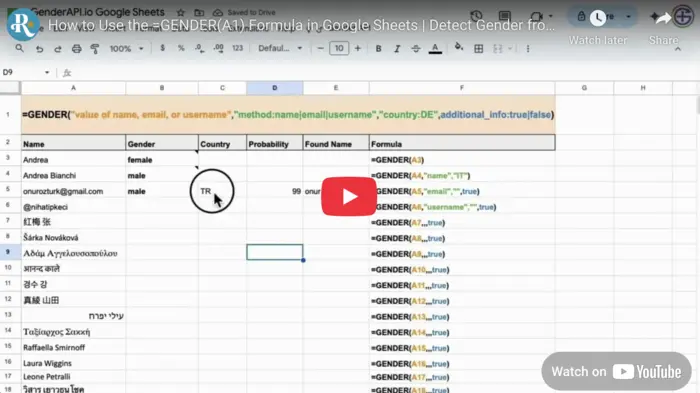
After installing the GenderAPI Google Sheets add-on and saving your key in its Formula settings, enter =GENDER(A2) to analyze the name in A2. Optional arguments select email or username input, country context and extra result columns.
GENDER is the add-on's native formula. It does not accept the V2 JSON request object or return the V2 response envelope.
Save your key before entering formulas
- Open Extensions → GenderAPI → Determine Gender, then use the sidebar menu to open the Formula page.
- Choose a saved API key or enter your key and save it. Keep credentials in the sidebar rather than in shared worksheet cells.
- Enter a representative input in A2 and put the formula in a separate cell. Leave room to the right when requesting additional information.
- Check the result and the current sidebar formula help before filling the formula down to more rows.
Arguments appear in this order
| Argument | Type | Default | Description |
|---|---|---|---|
input | Text or cell reference | Required | A name, email address or username value, such as A2. |
method | Text | name | Use name, email or username to match the input. |
country_filter | Text | No country filter | Optional two-letter country code. Use an empty string when skipping this argument before additional_info. |
additional_info | Boolean | FALSE | TRUE requests additional fields in adjacent columns; FALSE returns the gender value only. |
Each example is a separate formula. Use the input method that matches the value in A2. These are syntax examples, not guaranteed predictions. Formula separators may depend on your spreadsheet locale.
=GENDER(A2)
=GENDER(A2, "email")
=GENDER(A2, "username")
=GENDER(A2, "name", "IT", TRUE)
=GENDER(A2, "email", "", TRUE)
Leave space for expanded output
With additional_info enabled, the current Google Sheets sidebar help lists four values in this order: gender, country, probability and normalized name. This differs from the Excel formula order. Confirm the installed add-on's help when creating column headings.
Keep all destination cells empty so the array can expand. A blocked array, a missing key or a platform error needs troubleshooting; it is not a prediction of unknown gender.
| Position | Current Sheets help | Handling |
|---|---|---|
| 1 | Gender | Keep unresolved results unknown and distinguish them from error text. |
| 2 | Country | Use as returned lookup context, not verified location. |
| 3 | Probability | Preserve the legacy signal with the result; do not rename it V2 confidence. |
| 4 | Normalized name | Check the name derived from your input before using it downstream. |
Understand recalculation and cached notes
A formula is dynamic. Editing its inputs or recalculating the sheet can require work again. The add-on can write a note containing the formula and its cached result, but a note is not a guarantee that every later calculation avoids a request or a charge.
Google applies custom-function execution and URL Fetch quotas separately from GenderAPI credits. Its current documentation limits a custom-function execution to 30 seconds. Too many concurrent formulas or slow requests can produce errors even when your account still has credits.
For a stable snapshot, copy completed results and paste them as values into a separate area. This removes their dependency on the formula for that snapshot; retain the original input and review date for your records.
Plan for credits, limits and repeated runs
A registered free GenderAPI account includes 200 credits per day. Credits are an account balance, not a promise of 200 successful results in every workflow. Check the selected key's balance and the tool's current processing options before starting.
Native add-ons and file jobs have their own processing paths. The REST V2 batch limit, AI options and per-request billing fields do not automatically apply to them. A repeated run or recalculation can submit fresh work; do not assume it is free.
Start with a small sample, retain completed results, and review the failed rows before rerunning. If you only need to repair a later export or destination update, reuse the results you already have.
When to use the direct V2 API
Use a separate HTTP integration when your application needs explicit AI options, per-item status, source, confidence kind and usage information from V2. Follow the V2 request and response contract; adding V2 field names to a native formula or existing add-on does not change that client's behavior.
Frequently asked questions
Is the formula named GENDER_API?
No. The Google Sheets add-on documents =GENDER(input, method, country_filter, additional_info). Microsoft Excel uses different names: GENDER.FROM_NAME, GENDER.FROM_EMAIL and GENDER.FROM_USERNAME.
Can I request extra fields without a country filter?
Yes. Keep the third argument as an empty string, for example =GENDER(A2, "email", "", TRUE). Additional fields then expand into adjacent cells.
Does a cached note make recalculation free?
A saved result can be reused, but the note does not establish that every future execution avoids a fresh request. Monitor credits and keep stable results as values when live recalculation is unnecessary.
Does every spreadsheet editor automatically have access?
Do not assume so. Confirm that the add-on is available and authorized for the intended users and document. Keep a values-only copy when recipients only need the completed results.
Reference sources
This guide and its reference sources were reviewed on . Use the platform references for setup details and the linked API documentation for a separate V2 integration.